Configure form prefills
When you use a Form task, you can prefill fields with data from previous forms or system sources.
For Form task setup details, refer to the Form task guide.
Form prefill options
The General Settings area includes form-level prefill options. These settings apply to all form questions, except when you configure Specific Question Prefill Settings.
Set prefill priority from most specific to least specific. If a form-level prefill has higher priority than a specific question prefill, the specific question prefill won’t run.
A Form task first pulls data from the previous form iteration (if configured). If no previous iteration exists, the task first uses matching task questions, and then specific question prefills. The task uses the first value it finds based on priority, including empty values.
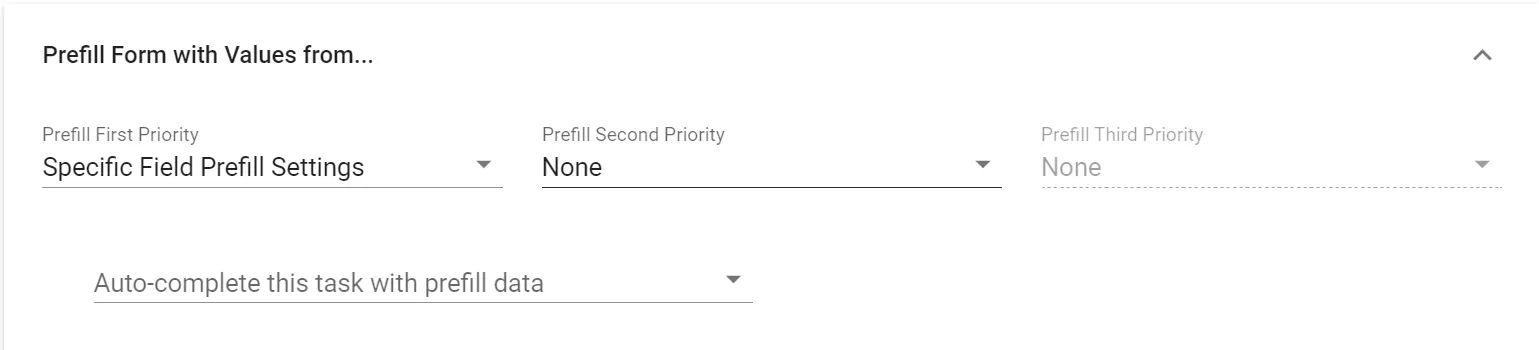
The following table describes each setting and its behavior:
| Option | Setting | Description |
|---|---|---|
| Prefill Form with Values from… | None, Specific Field Prefill Settings, Parent Process Data, Latest Matching Field Value, or a task name | Use this when one task should prefill most or all fields in another form task. This is also useful in looped processes where a task prefills itself with data from a previous iteration. If the same form appears multiple times in a process, you can use this setting to prefill one instance from another, even when different users complete them. |
| Autocomplete this task with pre-fill data | Always, Never, When process is launched as a child request | Default is Never. Use this when the form task should complete without user input after prefills are applied, such as in child requests triggered by a Launch Request task. |
Examples of prefill scenarios:
- Reusing data from a specific task — If Form Task A is completed early in the process and Form Task B uses the same form, select “Form Task A” in this setting to prefill Form Task B with data from Form Task A.
- Using the latest matching data — When multiple form tasks use the same form in one process, select Latest Matching Field Value to prefill from the most recently completed matching task iteration. For instance, if Form Task A, B, and C all use the same form, this option uses data from whichever task was completed most recently. If a user clears a previously populated field in the latest submission, that cleared value is treated as the latest value, so the prefill won’t restore older stale data.
When a Form task is configured to autocomplete with prefill data, the applied prefill values are saved before the process continues. This includes repeated-form scenarios where a later occurrence of the same form uses data from an earlier occurrence, helping prevent missing values and incorrect routing.
The questions must match by question type and Client ID. If Client IDs were recently edited, use Import Questions in Advanced Settings to refresh the values available to the Form task.
Individual question prefill options
You can configure prefill sources for each question on a form.
After you associate a form with a task, use the Prefill Settings tab to configure each question.
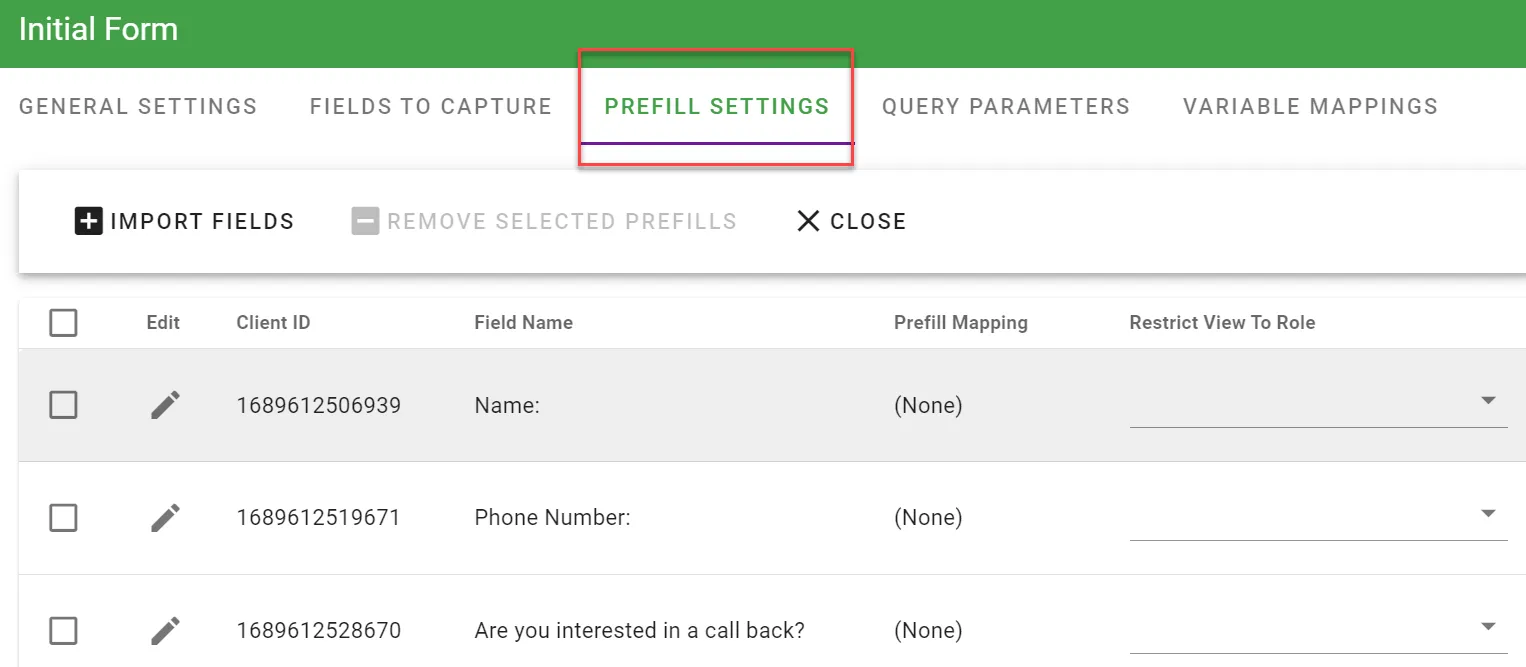
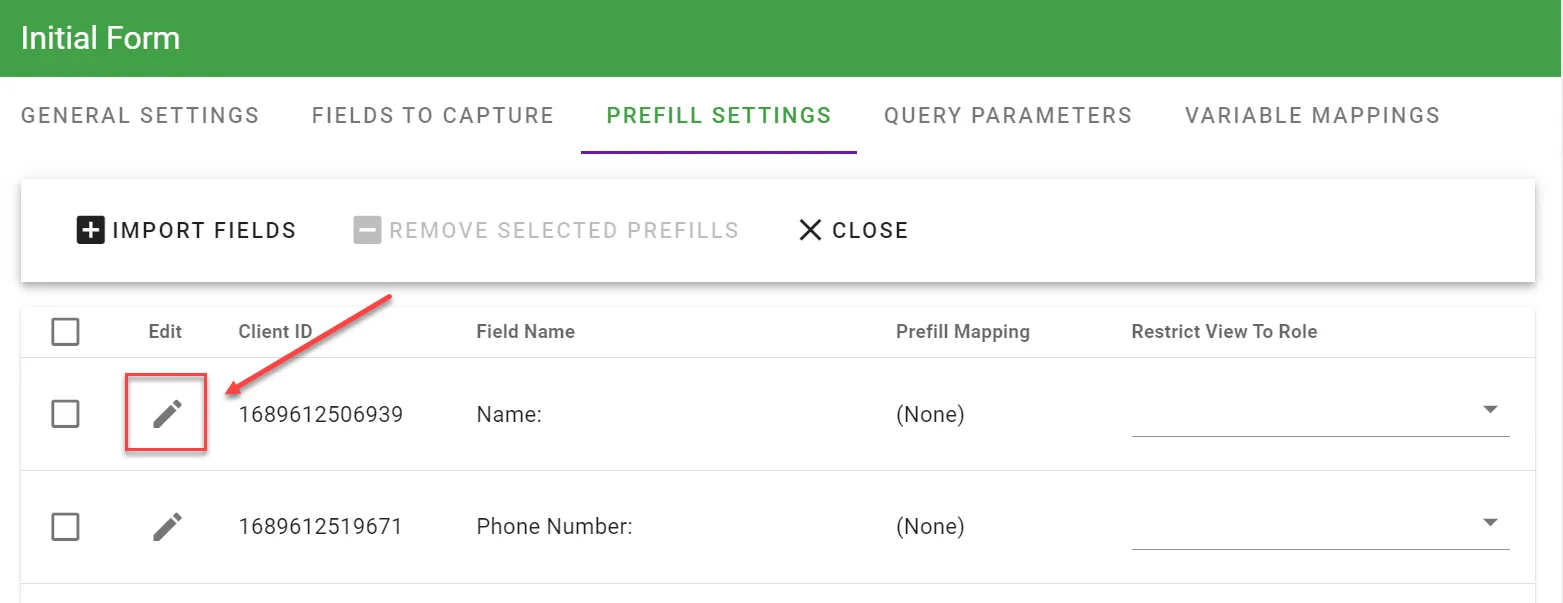
To configure a question prefill:
- Select the Edit icon for the question.
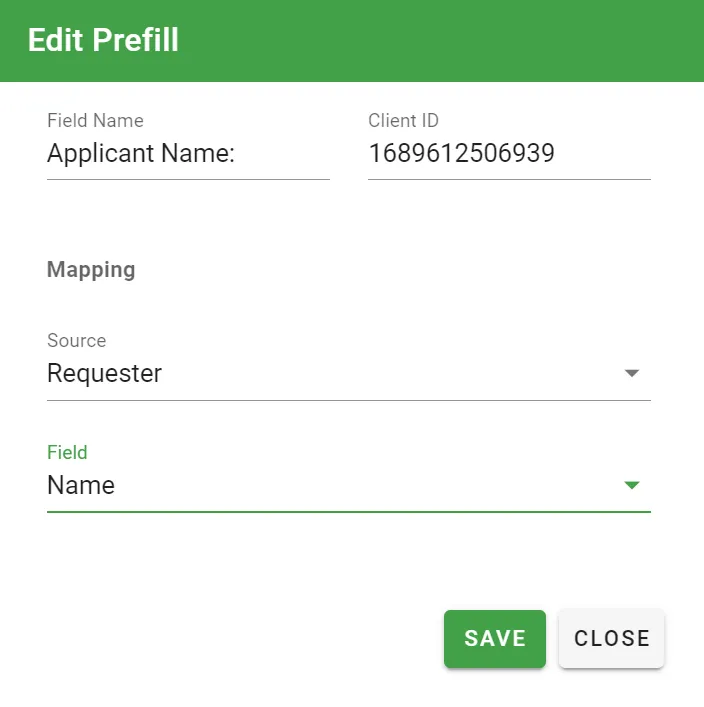
- Select a Source in the dialog.
A form question can pull values from another task, user attributes (Requester, Client, and others), or request metadata.
Not all sources in the list are valid for all task types (for example, Fixed Value). If you choose an unsupported source, the platform shows an “Invalid Selection” error.
In this example, the Applicant Name question is prefilled from the requester’s Name field in their user profile.
The “Name” field returns the user’s first and last name from their profile.
Each time this form runs, the Applicant Name question is prefilled with the requester’s Name.
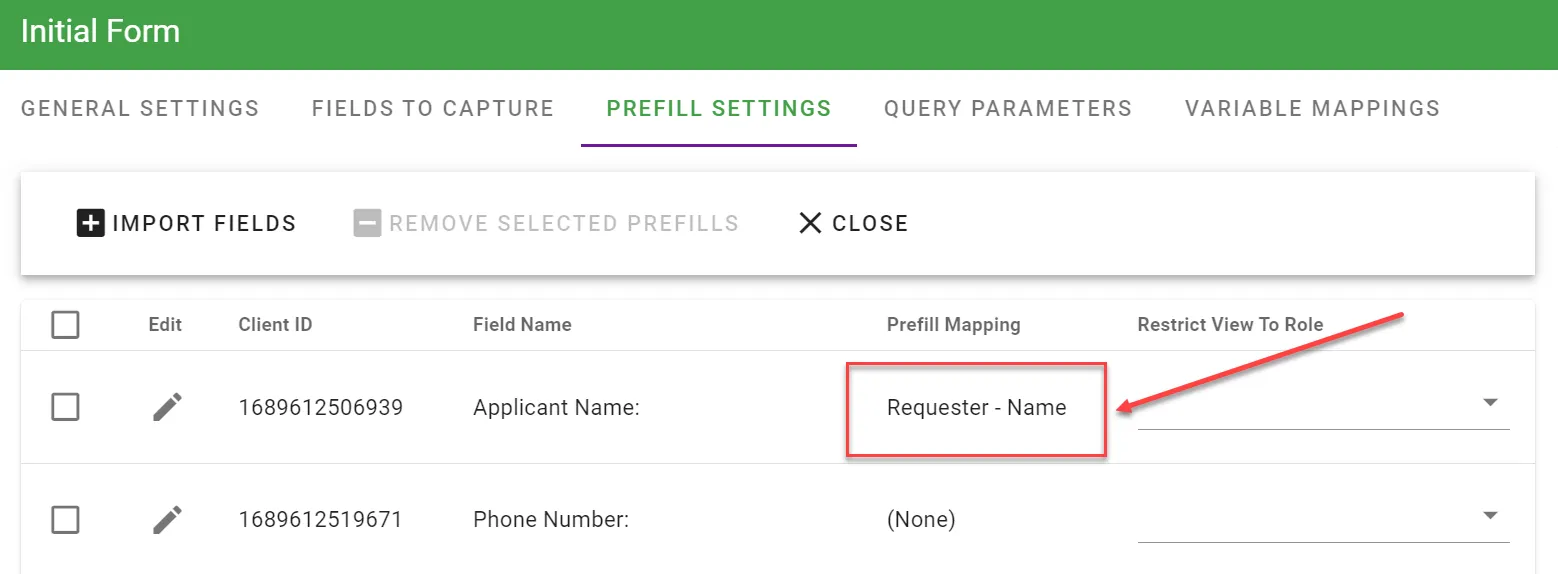
If you add a question to a form that is already linked to a Form task, use Import Questions to add it to the prefill list. New questions don’t appear automatically. If you remove questions, select Import Fields to refresh the question list.
Searching configuration tables
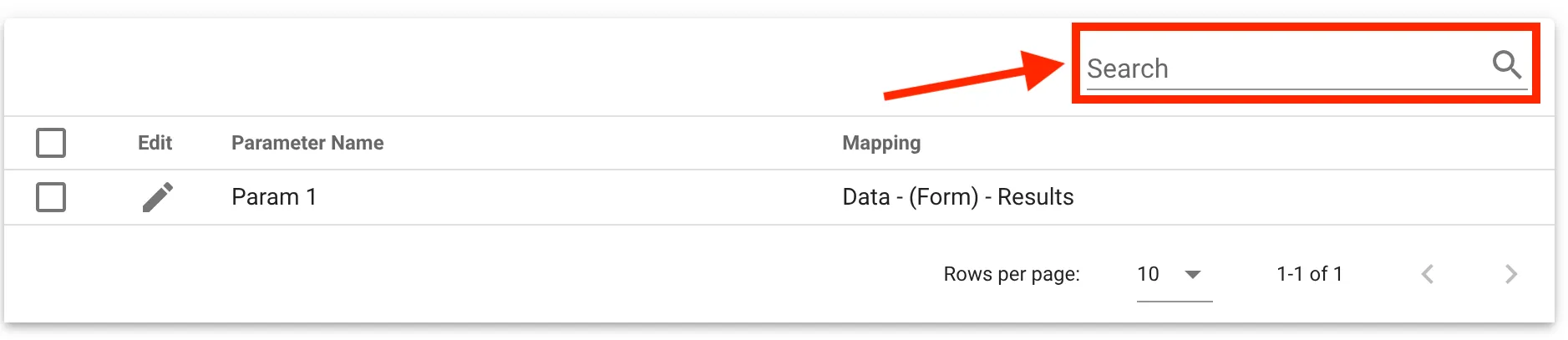
Each configuration table includes a Search field at the top. Use it to filter entries by keyword. If the table has many entries, search instead of scrolling. Click X to clear the filter.