Manage notifications with the Notification Center
The Notification Center is where Nutrient Workflow Automation delivers system messages — license warnings, missed schedules, task failures, and finished report exports. It can be reached from the bell icon in the top-right menu, and it looks and works like an email client: an inbox of messages, each with a header, a body, and a timestamp.
As a result, activity that would otherwise require manual monitoring arrives on its own, in one place.
Anyone can open the Notification Center, though which messages appear depends on the notification type.
Open the Notification Center
Select the bell icon in the top-right menu. The number on the icon is your unread message count.
Notification types
| Type | What it covers | Who receives it |
|---|---|---|
| Licenses | License status, overages, and other license updates. | Administrator group |
| Scheduled Events | Missed reports and process schedules. | Administrator group |
| Tasks | Task failures. | Administrator group |
| Reports | Report activity, including attachment exports. An export message carries a download link for each ZIP archive, a link to the report file, and the date the links expire. For more information, refer to the exporting report data guide. | The person who started the export |
Navigating the Notification Center
The folder list sits on the left; the message list fills the rest; and the search box, filter, and settings controls sit above it.
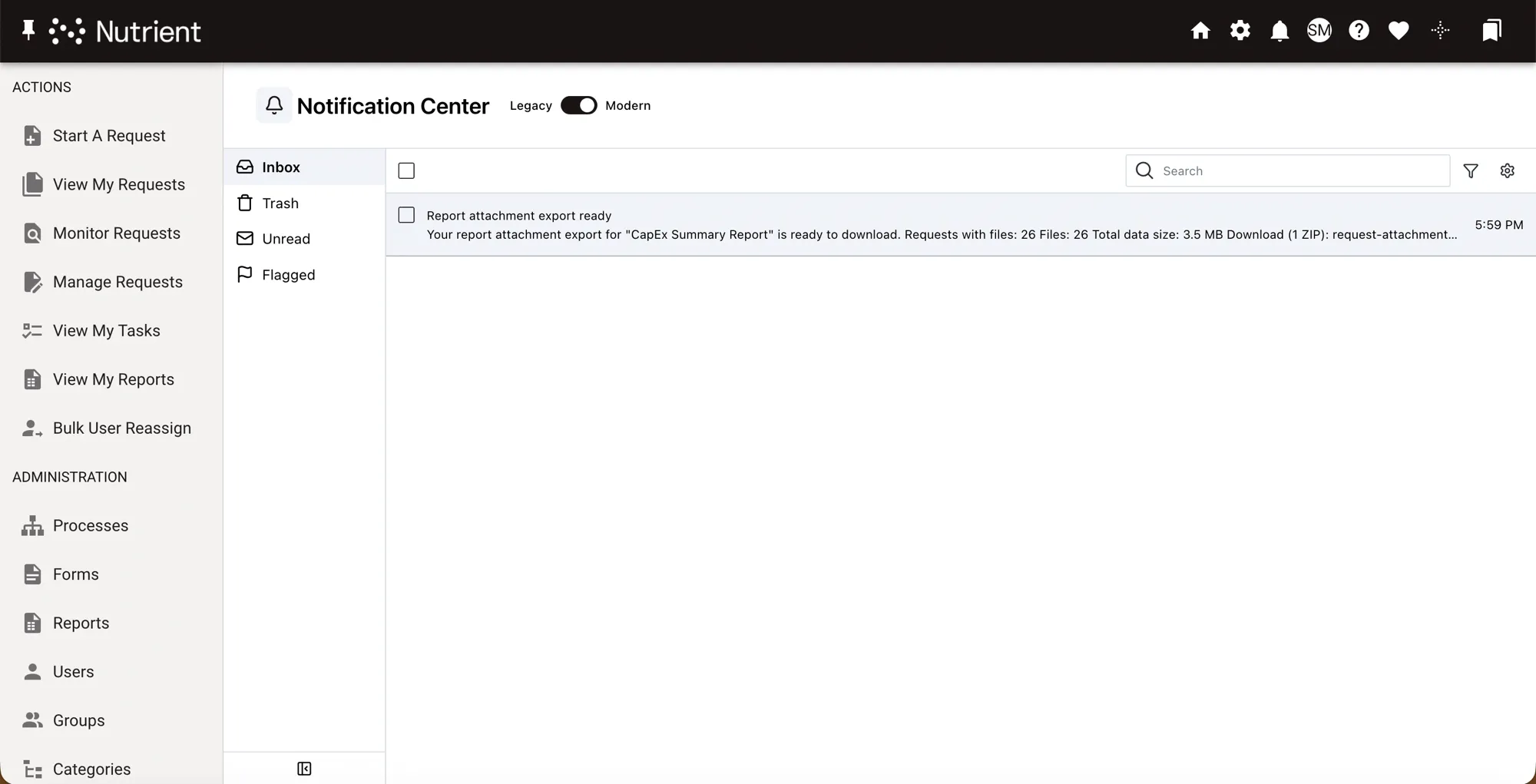
Inbox
Every message appears in the Inbox except those you’ve trashed. Select one or more messages to act on them.
| Action | What it does |
|---|---|
| Trash message(s) | Moves the selected messages to the Trash folder, where you can permanently delete them or restore them to the Inbox. |
| Flag message(s) | Flags the messages and adds them to the Flagged folder. Flagged messages stay in the Inbox as well. |
| Unflag message(s) | Removes the flag and takes the messages out of the Flagged folder. |
| Mark message(s) as read | Marks one or many messages as read, removing them from the Unread folder. |
| Mark message(s) as unread | Returns the messages to unread and adds them back to the Unread folder. |
| Filter message(s) | Filters the list by notification type. |
Trash folder
Lists the messages you’ve trashed. Select Remove to delete them permanently, or Recover to restore them to the Inbox.
Unread folder
Lists your unread messages. Selecting the Mark as Read icon removes a message from this list.
Flagged folder
Lists only your flagged messages. Flagged messages remain in the Inbox too, so unflagging a message here removes it from this list without deleting it.
If this guide doesn’t cover the issue, contact your Customer Success team.