Use AI data extraction to populate forms
Use the AI Data Extraction question type to extract data from documents with AI services such as OpenAI, Claude, etc. AI reads the document and returns the specified information. Map the returned fields into form questions so the data is stored and used like any other form input.
Watch the video below to see Nutrient AI Data Extraction in action.
Prerequisites
Complete the common AI configurations guide before proceeding.
Supported file types and sizes
Most AI providers accept common document formats such as PDF, DOC, DOCX, and TXT, and occasionally other text-based files. However, specific limits and supported formats may vary.
- OpenAI
- Accepts a range of file types (TXT, PDF, DOCX, CSV, JSON, etc.).
- For the latest supported file types and size limits, refer to the OpenAI documentation(opens in a new tab).
- Claude (Anthropic)
- Supports multiple text-based file types, including PDFs.
- For the latest supported file types and size limits, refer to Anthropic’s documentation(opens in a new tab).
Always verify the current constraints directly from the provider’s documentation, as limits may change over time.
Workflow overview
Below is a simplified workflow for using the AI Data Extraction question.
Create a form Add the fields that should be populated by AI so they can be mapped later.
Create and configure the AI Data Extraction question
- Select the AI connection created in common AI configurations.
- Add a custom prompt describing what to extract.
- Test with Test with mappings turned off first to see what the AI extracts from the prompt.
- When results are accurate, configure mappings and select only the fields you need.
- Test again with Test with mappings turned on to confirm extraction returns only mapped values.
Step 1: Create a form containing all the fields for AI extraction
Create or edit a form that will hold the data extracted by AI. For example, if extracting invoice information, include questions such as:
- Invoice number
- Due date
- Customer name
- Payment terms
- Total amount
Navigate to Forms under the Administration menu in the left navigation panel.
Click Create New Form.
Add all relevant questions (e.g. text, date, etc.) corresponding to the data that the AI will extract.
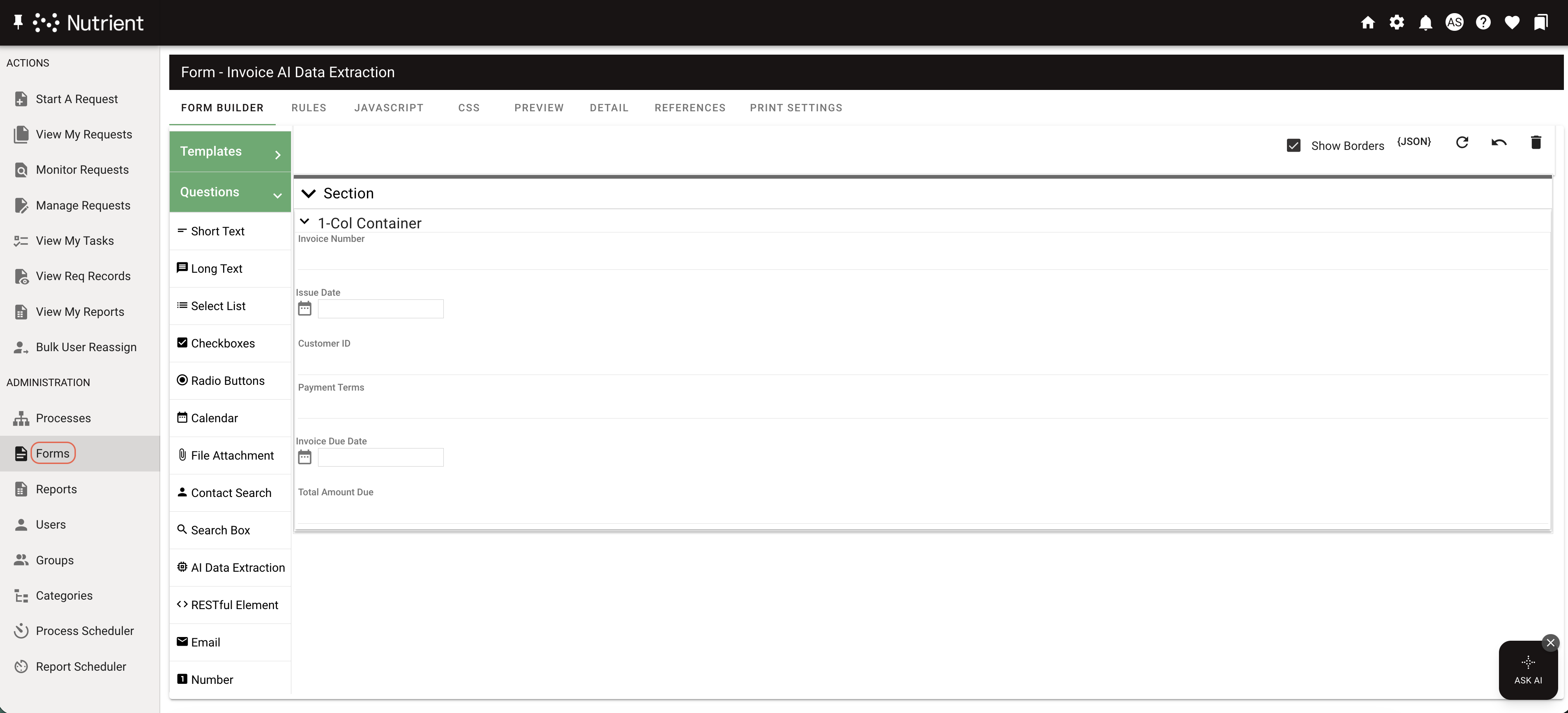
Step 2: Create and configure the AI Data Extraction question
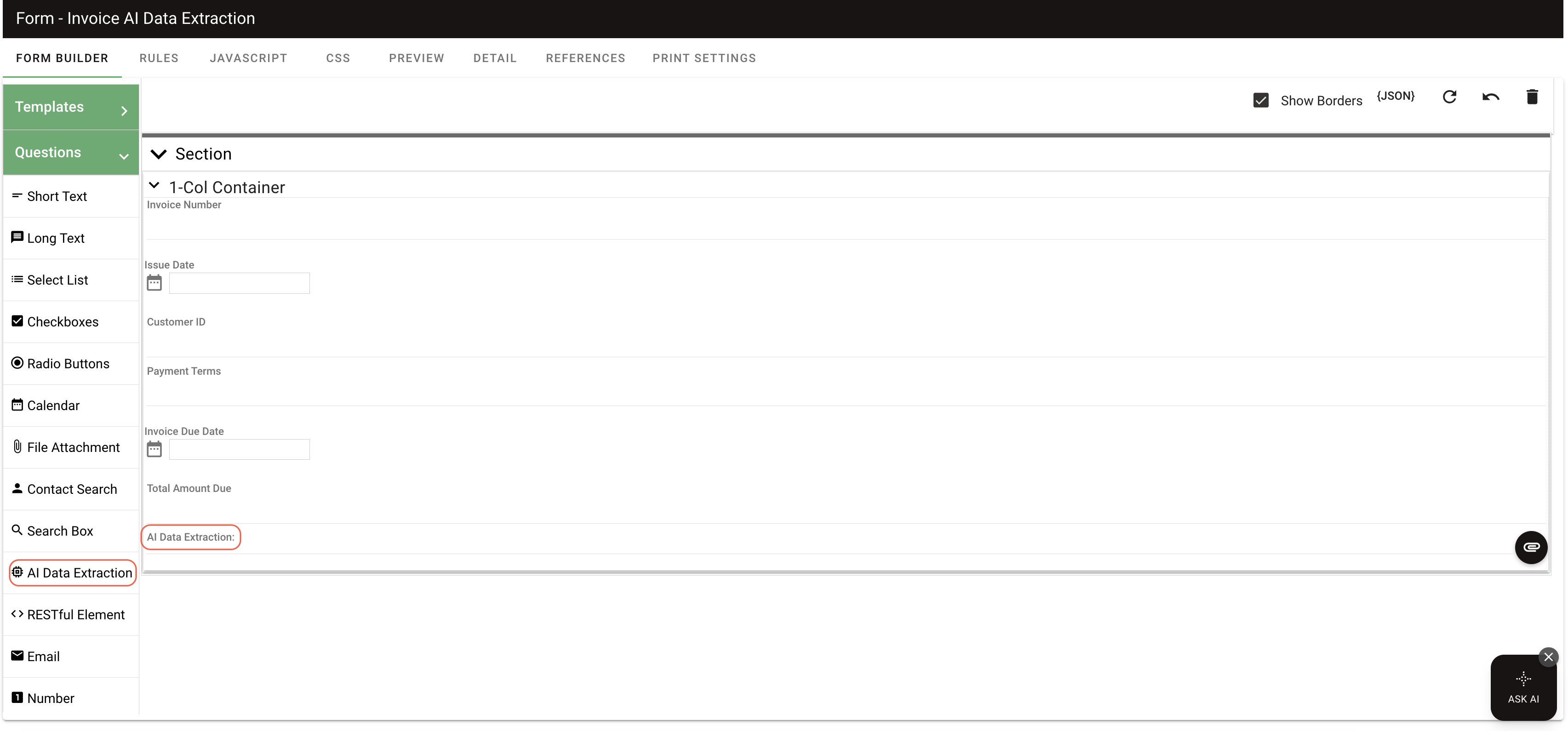
In the form designed in Step 1, drag and drop the AI Data Extraction question.
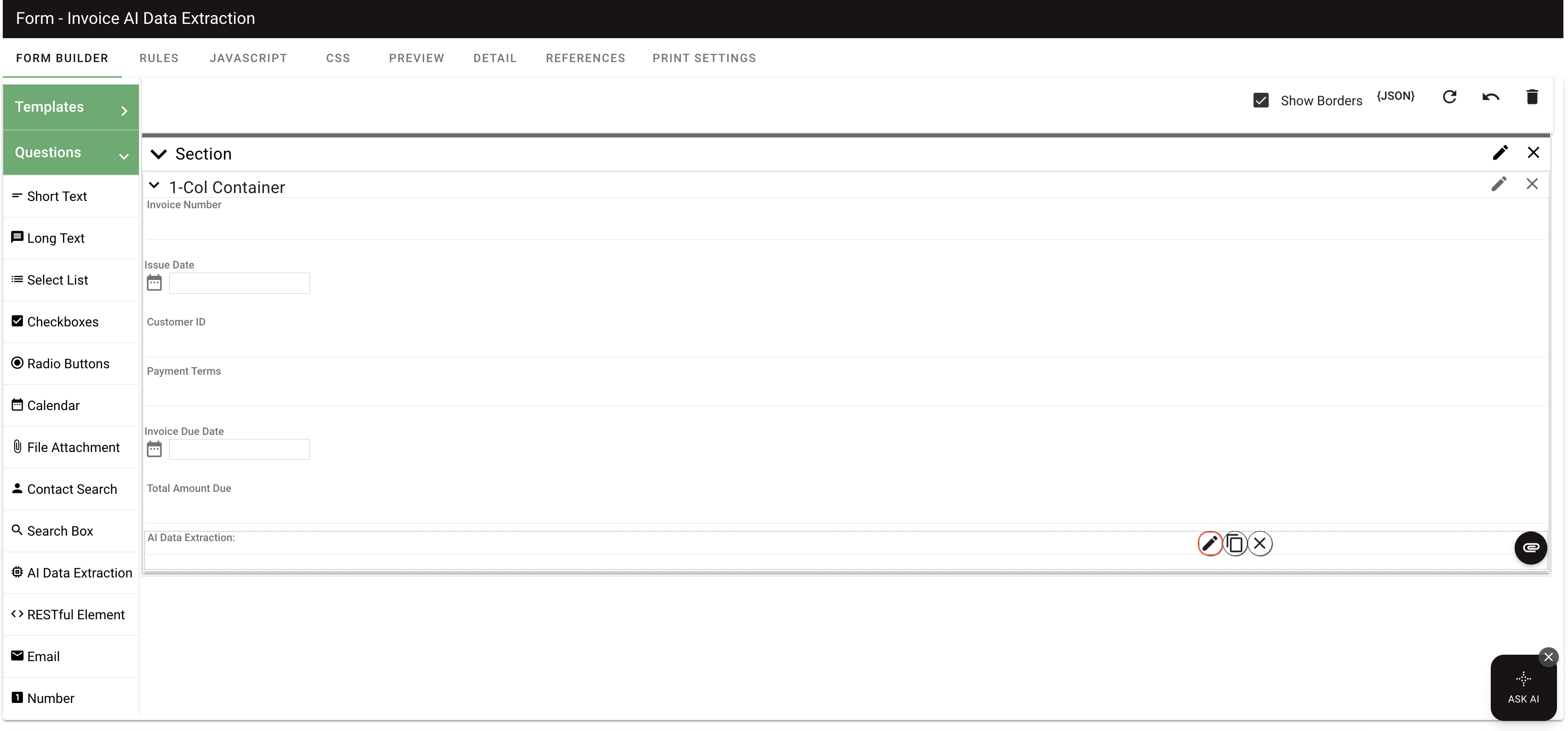
Click the Edit icon to configure the AI Data Extraction question.
Under AI Processor, choose the AI connection created in common AI configurations.
If a connection is marked as using a deprecated model, open AI Sources and update it to a supported model before continuing.
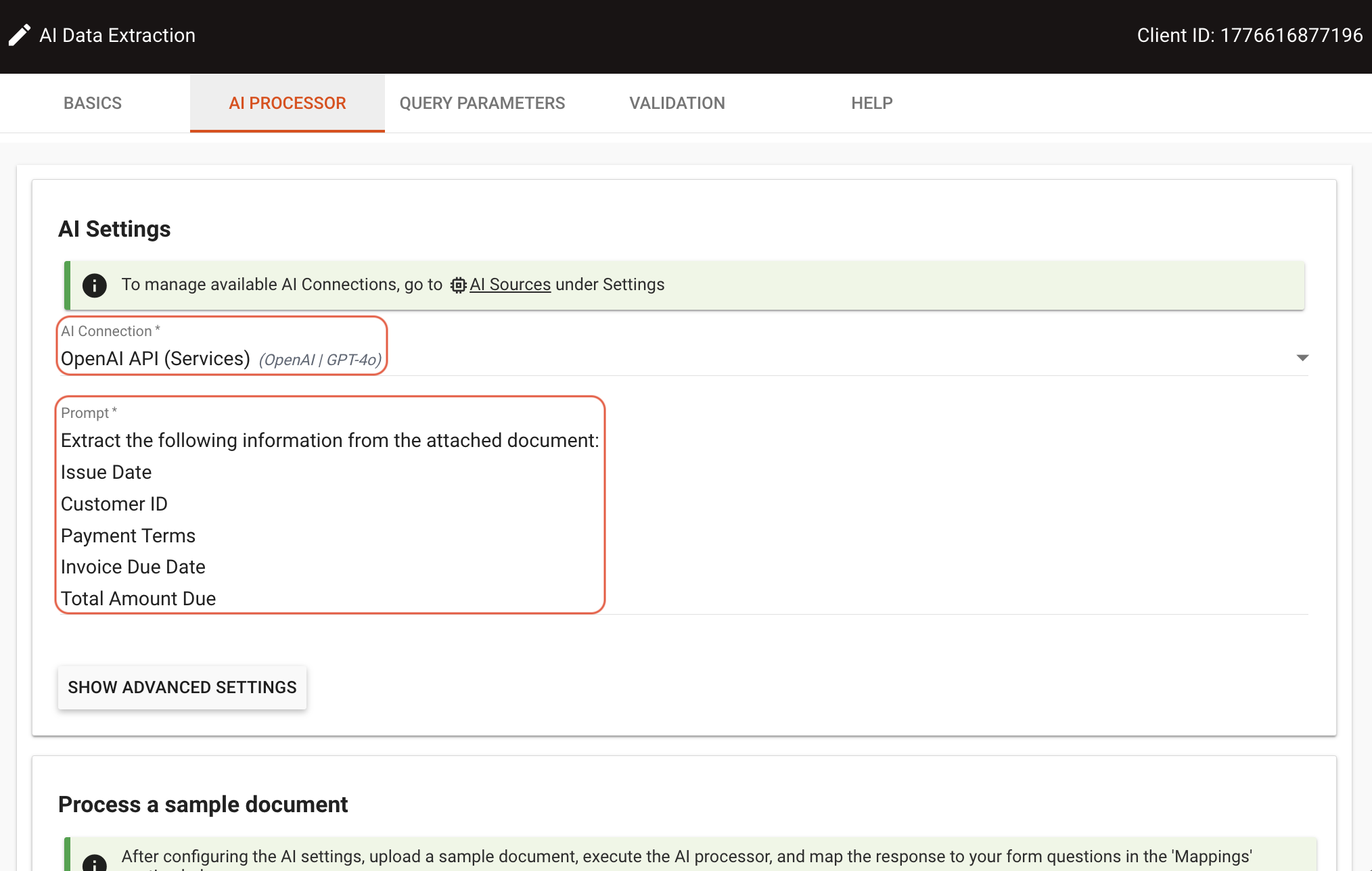
Set the prompt. This instruction tells the AI what to extract and is essential for accurate results.
Enter a prompt describing the information needed.
Specify the exact fields expected in the response, and describe each field for better results.
An example prompt might be:
Extract the following information from the attached document:1. Issue Date — The date the invoice or document was created.2. Customer ID — The unique identifier assigned to the customer.3. Payment Terms — The terms that define when and how payment should be made.4. Invoice Due Date — The date by which payment is due.5. Total Amount Due — The full amount that must be paid.
- Nutrient Workflow Automation processes responses automatically. Focus your prompt on the business information you need to capture.
- Large language models might guess or invent information not found in the source document. If precision is critical, add a disclaimer such as: Only provide information you are 100 percent sure about. If you are unsure or the data is not in the document, respond with “Not available.”
Under Process a sample document, upload a sample document (PDF, DOCX, or other supported formats(opens in a new tab)) to test the prompt.
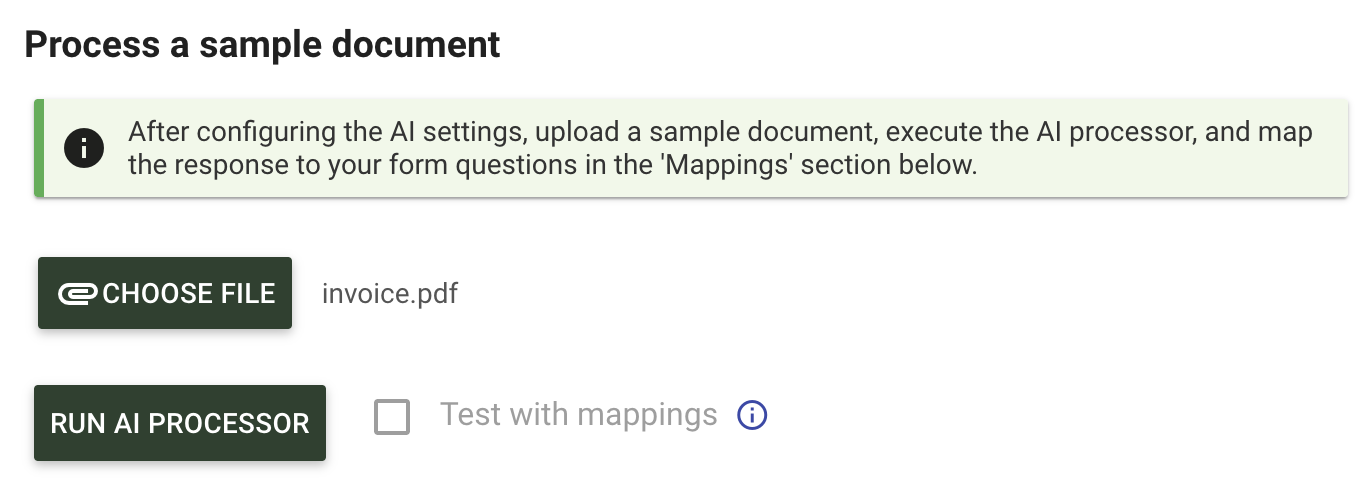
Click Run AI Processor to see the AI-generated response.
- Begin with Test with mappings turned off to check what the AI can extract from your prompt.
- When results are accurate, go to Mappings > Add Mappings. Then, in the AI Response Field selector, choose the fields you need.
- Run again with Test with mappings turned on to confirm the result is limited to mapped values and doesn’t include extra noise.
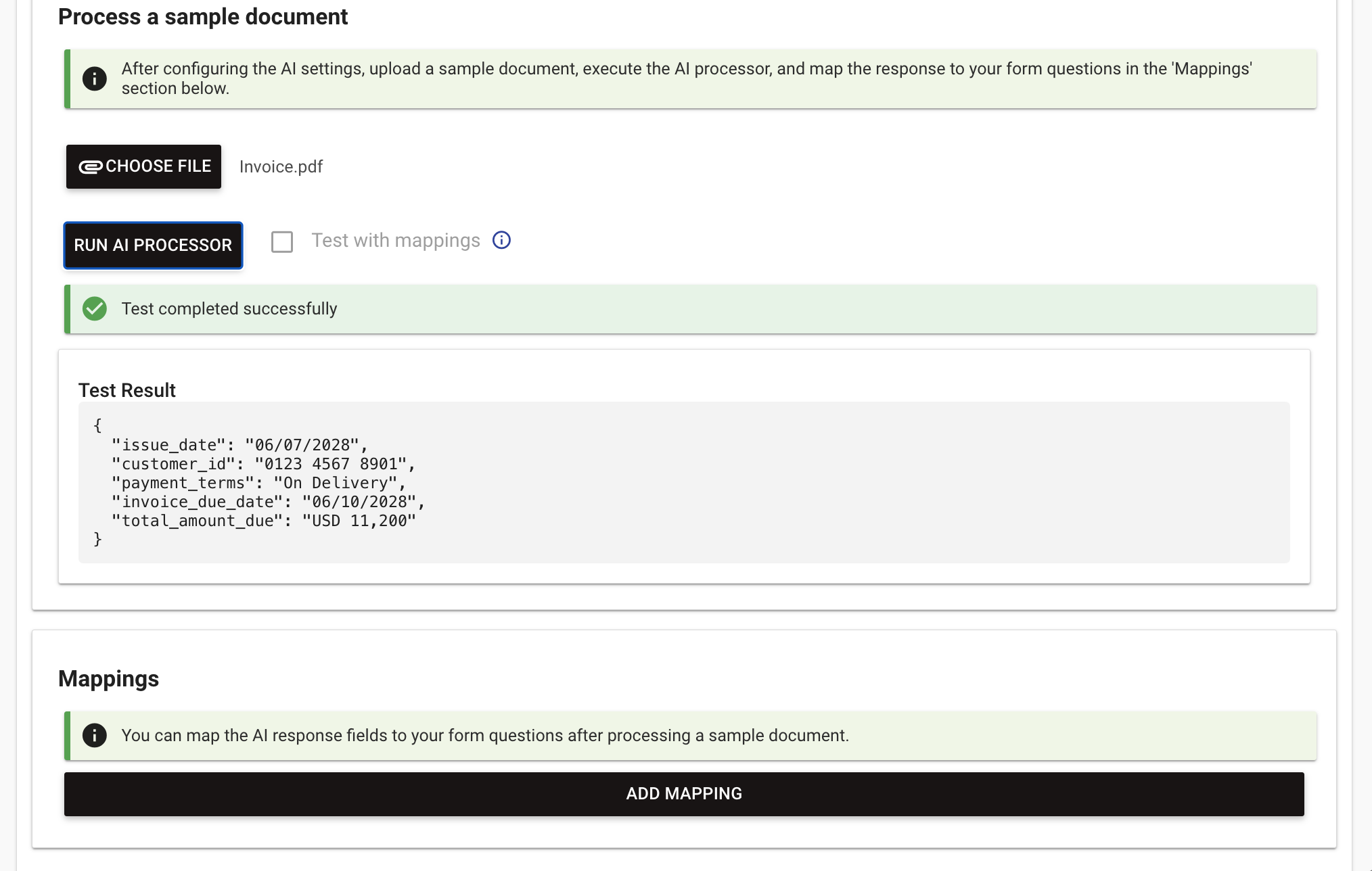
Refine the prompt:
- Adjust the prompt if specific fields are missing or incorrect.
- Test with multiple sample files until the output meets your requirements.
Map the AI response to form questions:
- In Mappings, click Add Mapping to connect each AI response field to the corresponding form question.
- In the AI Response Field selector, choose only the extracted fields you want to keep.
- Click Save Changes.
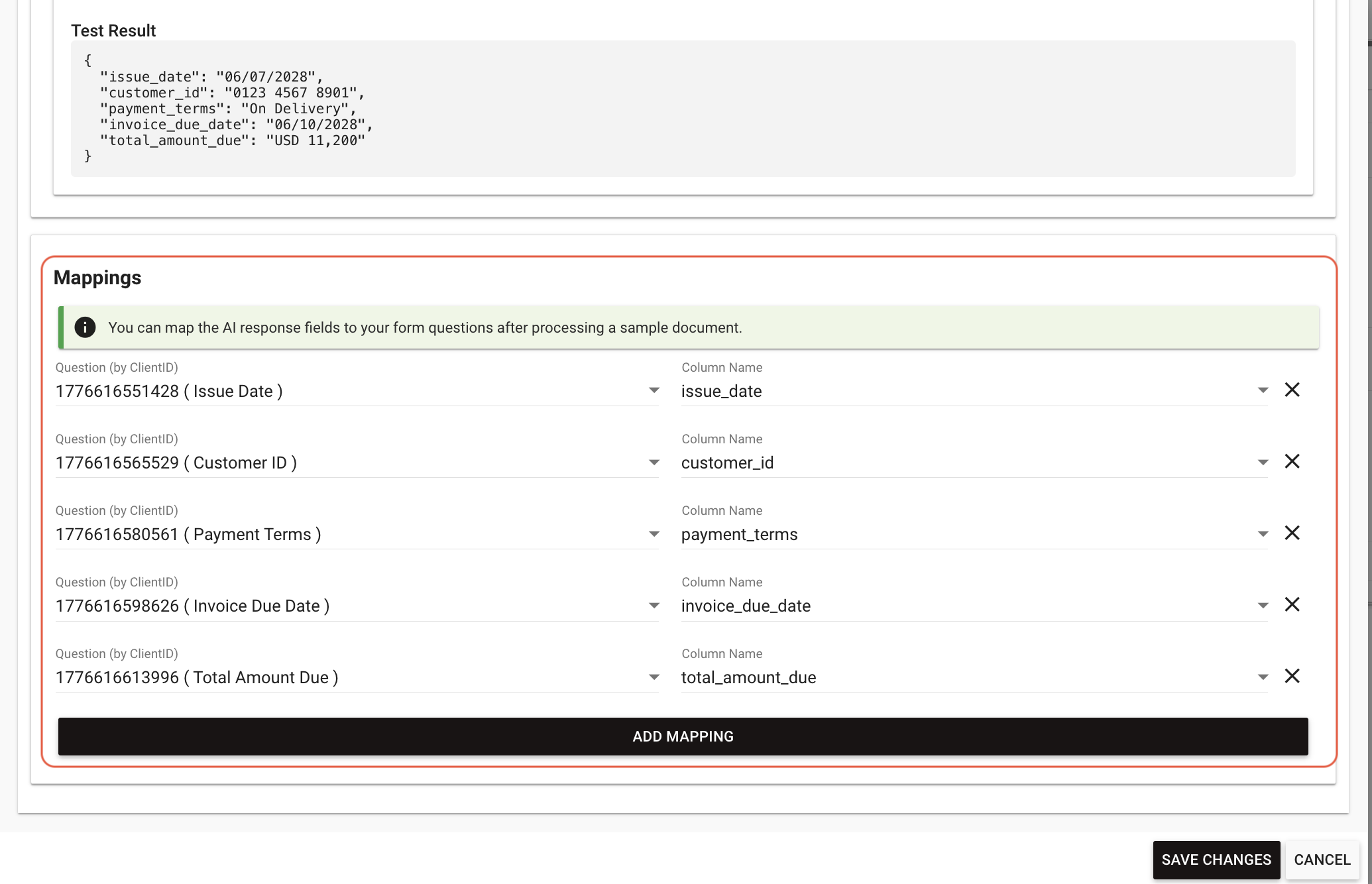
Step 3: Preview and validate
Click Preview to confirm how the question behaves and to ensure the configured fields display correctly.
Attach a document to the AI Data Extraction question to trigger AI processing.
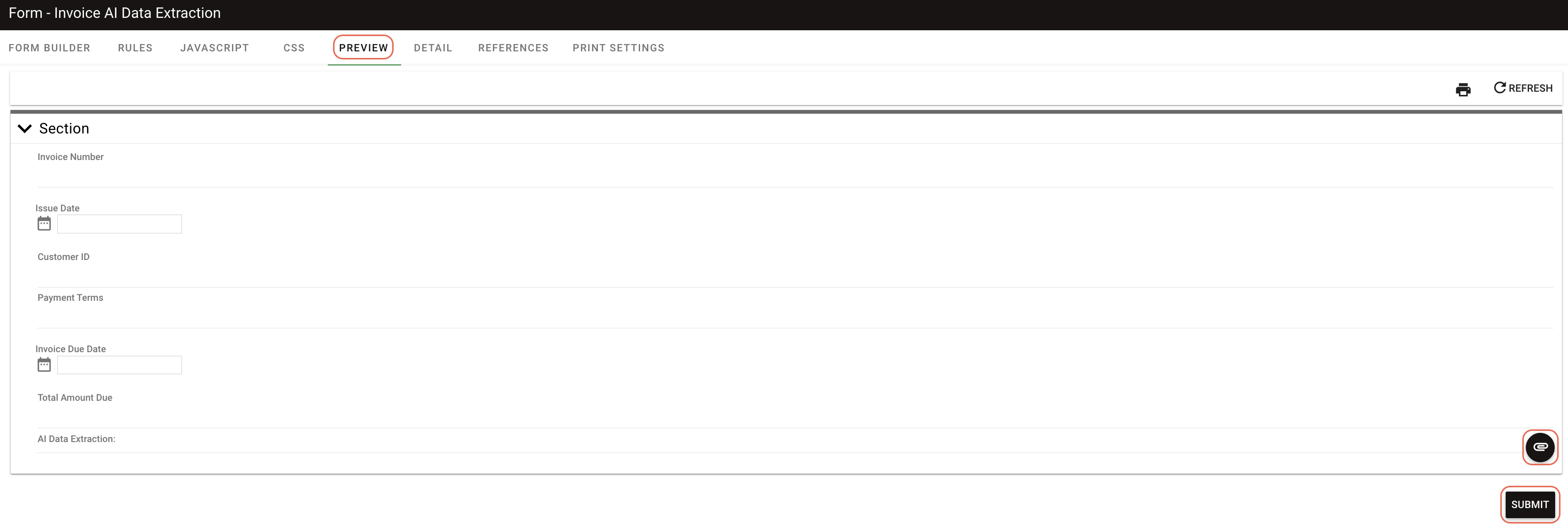
Review the populated fields once the AI finishes extraction. Verify that the mapped fields contain the expected data. Return to the previous steps to refine the configuration if the output needs improvement.
Tips and best practices
- Provide clear instructions — Write concise, direct prompts for better results.
- Validate the AI output — Confirm the AI response includes the required fields and expected values.
- Refine iteratively — Small changes in prompt wording can produce significantly different results.
- Watch for hallucinations — AI may sometimes provide information not present in a document. If this occurs, reinforce instructions to omit any unverified content.