Create and manage groups
Use groups to organize users in Nutrient Workflow Automation. You can assign groups to tasks, roles, reports, and dashboards.
Navigate to groups
To open the groups page:
Navigate to Administration > Groups from the left navigation menu.
Click Add Group.
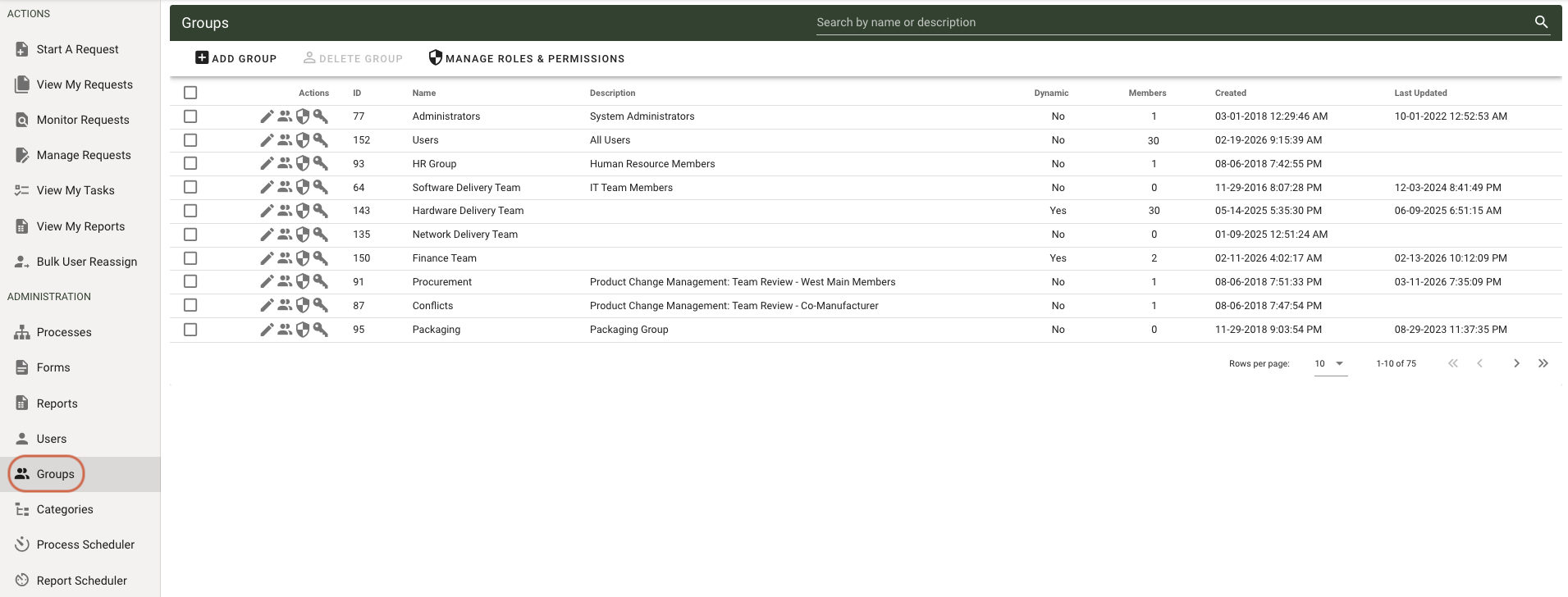
The groups list shows a member count for each group so you can identify empty groups.
Create a group
When you create a group:
- Enter a Group Name.
- Optionally enter a Description.
- Enable Dynamic if you want the group to populate from Dynamic SQL criteria.
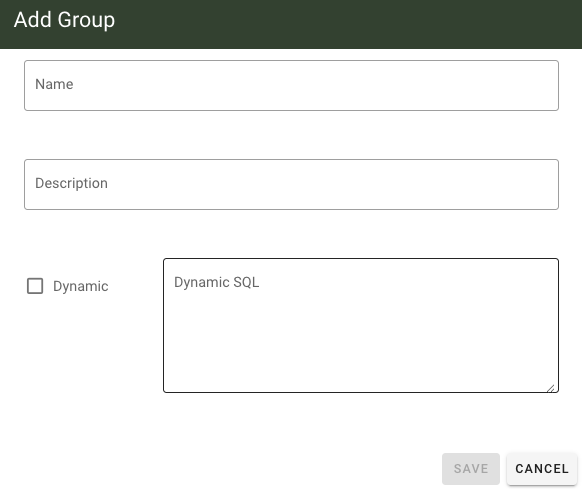
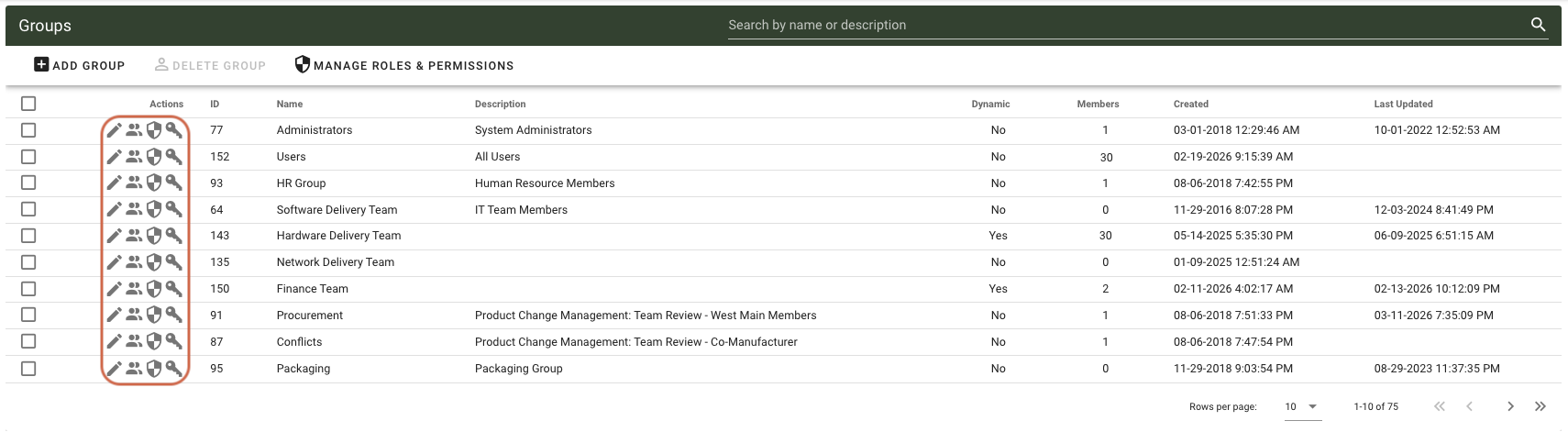
After you save the group, you can add members right away. You can also return later and use the Manage Members icon to add or remove members.
Manage group members
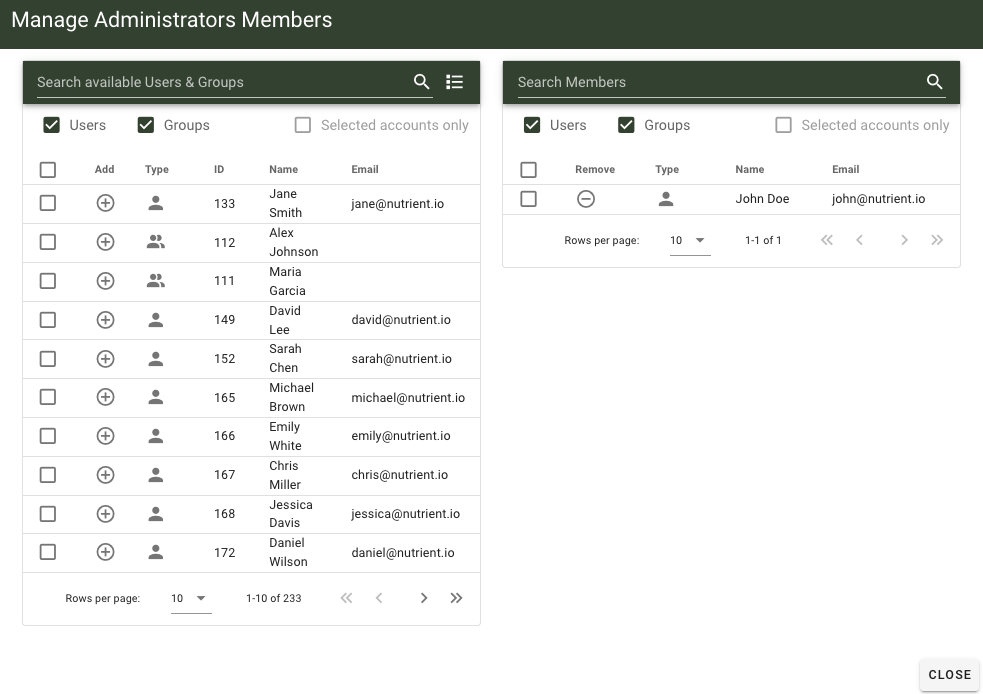
For standard (non-dynamic) groups, you can add:
- Individual users
- Other groups
To add members, click the + icon next to each user or group.
Create a dynamic group
Dynamic groups populate members from a query.
- Set Dynamic to Yes.
- Enter criteria in the Dynamic SQL field.
The expression in Dynamic SQL acts as the WHERE portion of a SQL query the system runs when it resolves the group.
Example: If your criteria filters users with TITLE = 'Reviewer', the group includes users whose title is Reviewer each time the group is referenced.
View a group’s permissions
To view all permissions assigned to a specific group across item types (such as processes, forms, and dashboards), click the (Key icon) in that group’s actions column.
This opens the Group Permissions List, where permissions are grouped by item type and support filtering and CSV export.
Only system administrators can access the permissions view. For more information, refer to the permissions overview guide.
Dynamic SQL field names
If you use multiple attributes in Dynamic SQL, enclose the SQL expression in parentheses ( ).
Use the following Workflow Automation contact table fields when building dynamic group criteria:
- CONTACT_ID
- NT_ID
- FIRST_NAME
- MIDDLE_NAME
- LAST_NAME
- PHONE
- TITLE
- DEPARTMENT
- COST_CENTER
- DIVISION
- REPORTS_TO_GUID
- C_FIELD_1
- C_FIELD_2
- LOCATION
- ADDRESS1
- ADDRESS2
- CITY
- STATE
- ZIP
- COUNTRY