A task is an action required of you or another employee, and it’s associated with a request process that has been started. For example, your task could be to complete a form or provide an approval.
In any process that has been built in Nutrient, tasks are represented by shapes.
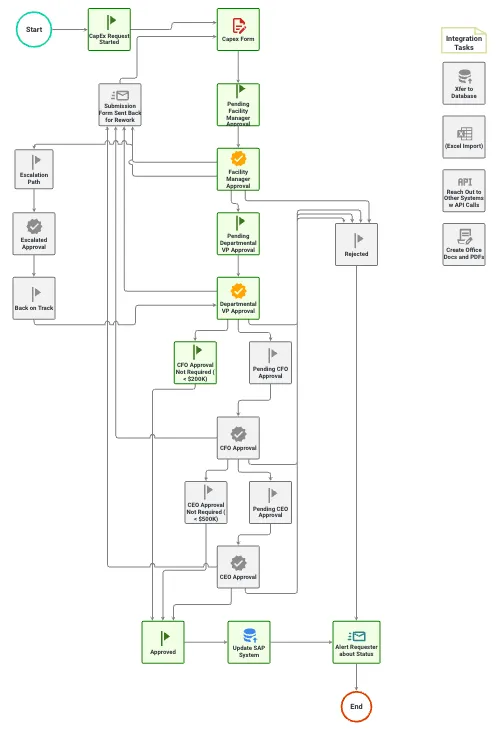
In this process, the red shape indicates a form must first be completed. This is a form task. Once the form is completed, it must be approved via an approval task. You might be assigned either of these depending on your role.
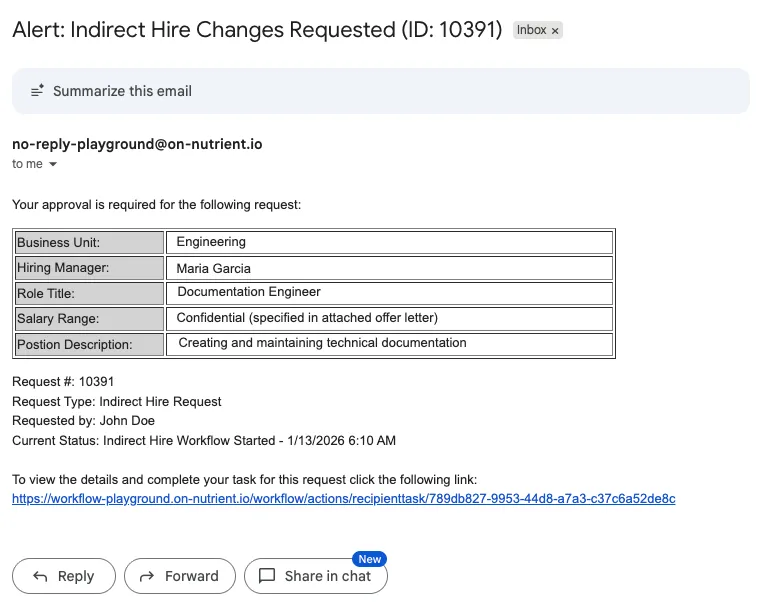
If email notifications are enabled for your task, you’ll receive an email with a link to your task.
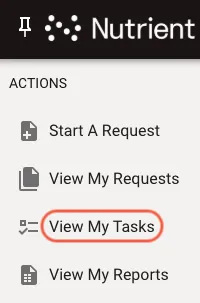
Otherwise, you can always find your tasks in the Nutrient Workflow Automation portal. To do this, select Actions > View My Tasks in the left navigation panel. Depending on how your administrator has set up your dashboard, you may also have My Latest Open Tasks displayed on your homepage.
You’ll see a list of all your open tasks. Click the magnifying glass before the task name to open a task, or click the down arrow to view more detail without opening it.
